
My day on your phone
Install OohWeGo on your phone, see just your own plan for the day with when to leave, and get leave-by alerts and notifications on your trip.
2 min readUpdated 21 October 2026
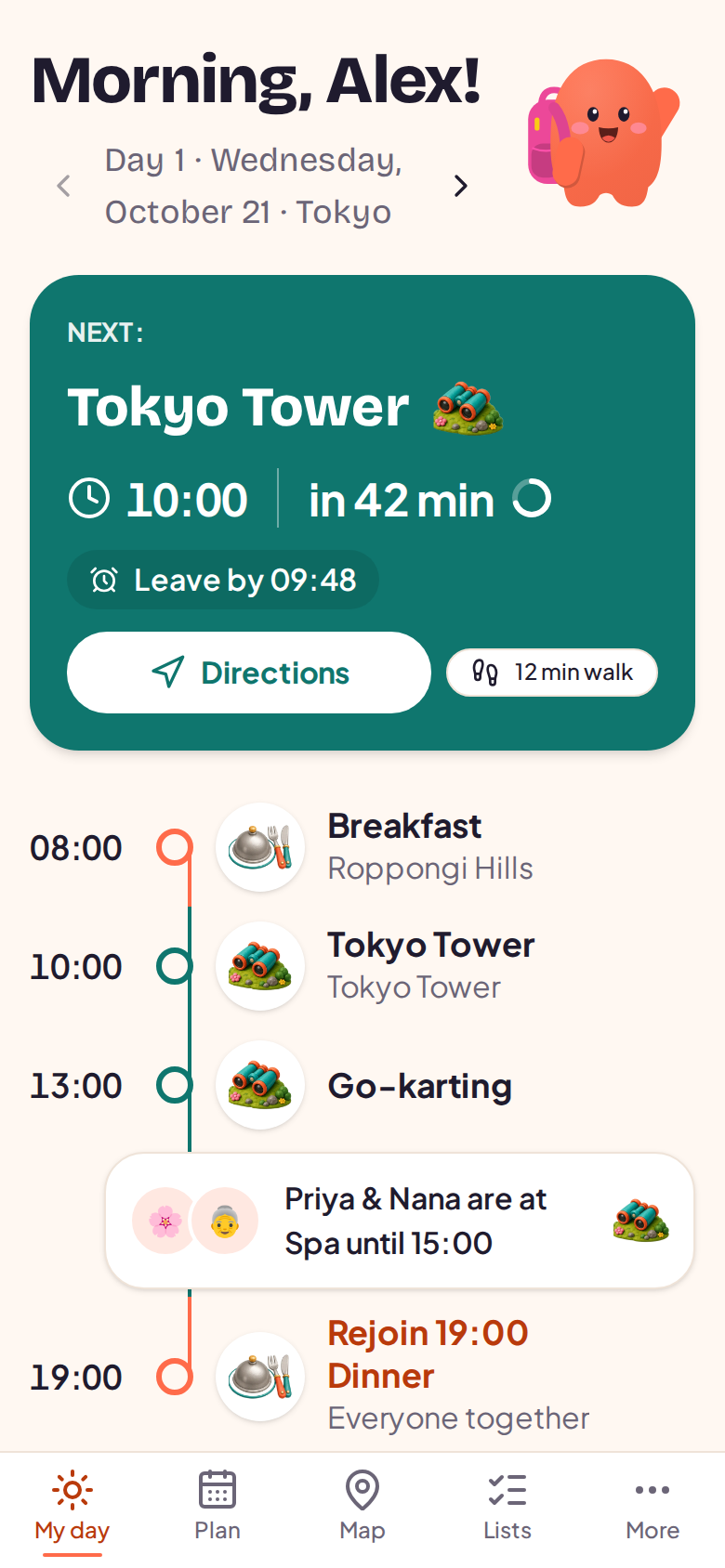
During the trip, nobody wants to scroll the whole group's itinerary. My day shows each person their own day: what's next, when to leave, where the others are and when you meet up.
What My day shows
Open a trip that's on and it opens on My day. It shows:
- What's next, when it starts and how long until then ("in 42 min").
- When to leave for it ("Leave by 09:35") and how to get there ("25 min drive"), with Directions in your maps app. The day's first stop says when to leave your stay.
- Your plan for the day, including your lane if the group has split, with where the others are meanwhile ("Nana will be at Spa until 13:00") and when you all meet back up.
- Your to-dos for the day, from the trip's lists, to tick off as you go.
Before the trip, it counts down ("30 days to go") and shows your first day.
Install the app
OohWeGo works in any browser, and installs like an app, so it opens full screen from your home screen.
- iPhone: open oohwego.com in Safari, tap Share, then Add to Home Screen.
- Android: choose Install when OohWeGo offers it, or install it from Chrome's menu.
Trips you've opened stay readable when you're offline, like on a plane or abroad without data, and catch up once you're back online. You can still log expenses while offline.
Leave-by alerts and notifications
Turn on Leave-by alerts on a trip's My day and your phone tells you when it's time to go.
To get notifications at all, open Settings, then Turn on notifications for this device. Send a test checks they arrive. On an iPhone, notifications need the app on your home screen first.
In Settings you choose what you hear about, as a notification, in your inbox or both: plan changes, being put in a lane, people joining, votes on your pins, to-do reminders, leave-by alerts and surprises revealed to you. Quiet hours hold notifications overnight, and you can mute a whole trip.
More guides
All guides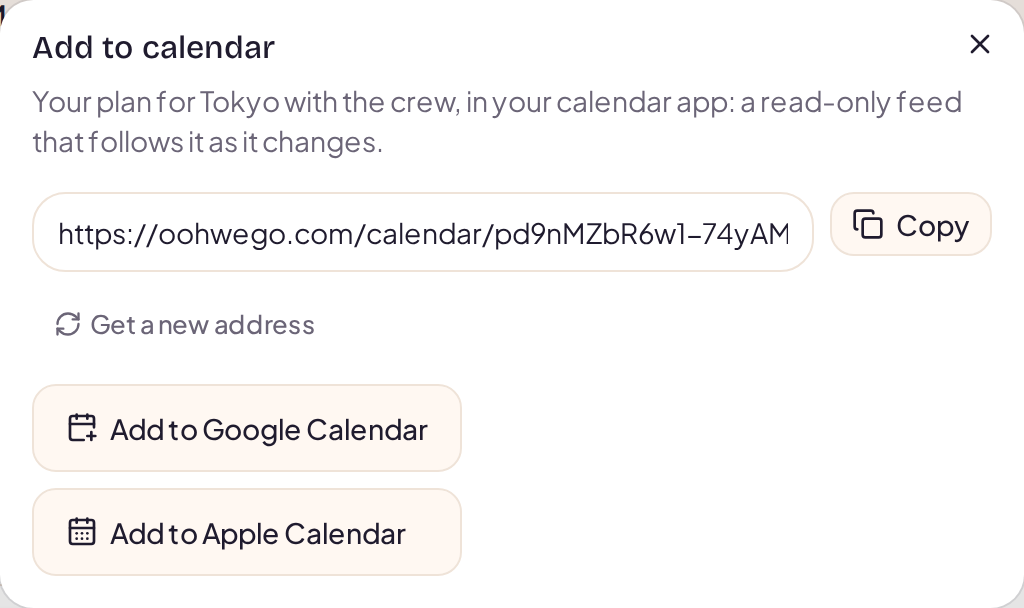 1 min read
Add your trip to Google or Apple Calendar
Subscribe to a calendar feed of your group trip, so your plan shows in Google Calendar or Apple Calendar and stays up to date as it changes.
Read the guide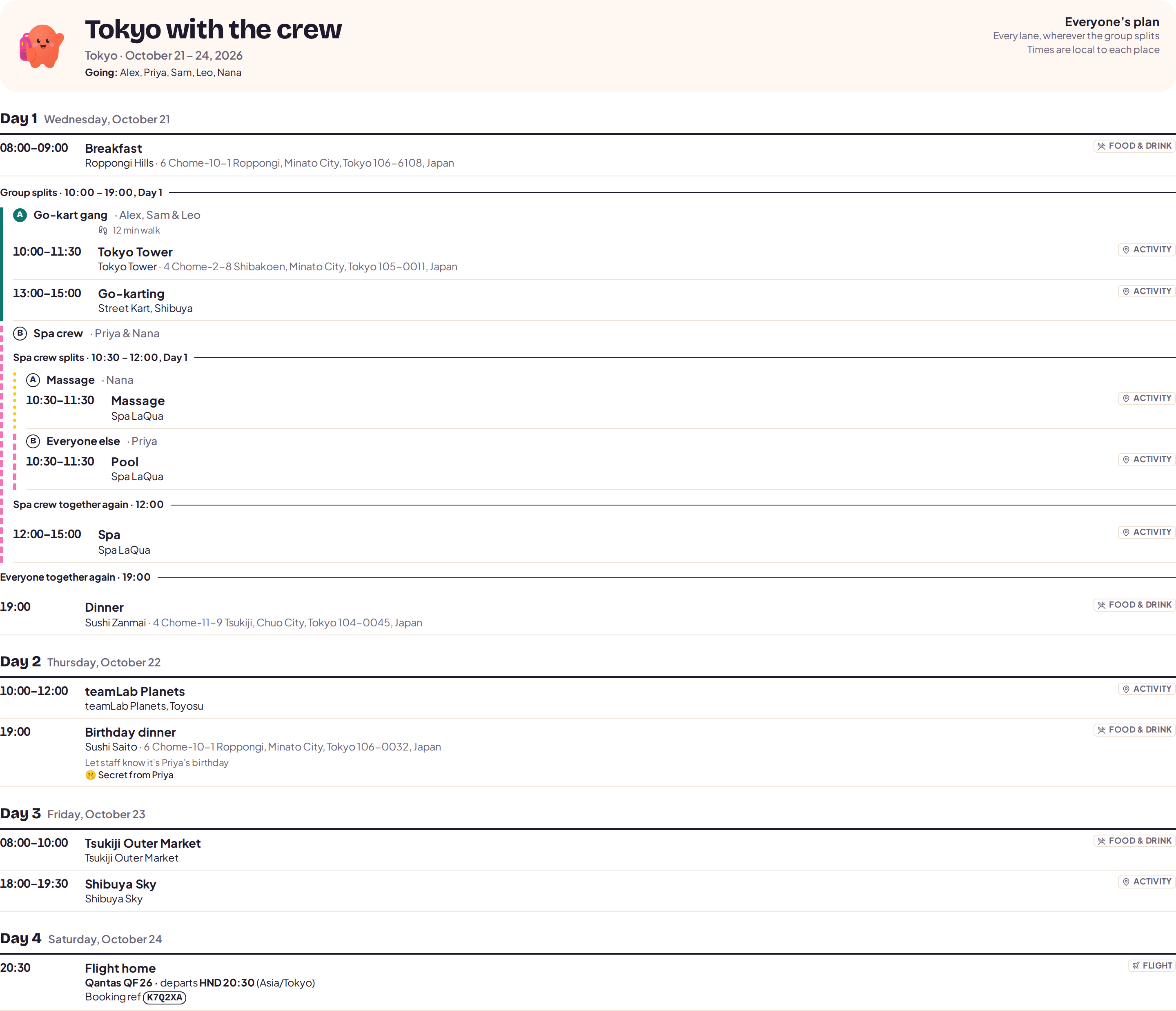 2 min read
Print or export your itinerary
Print your group trip itinerary or save it as a PDF, for you, one person or everyone, share a read-only link, or download all your data.
Read the guide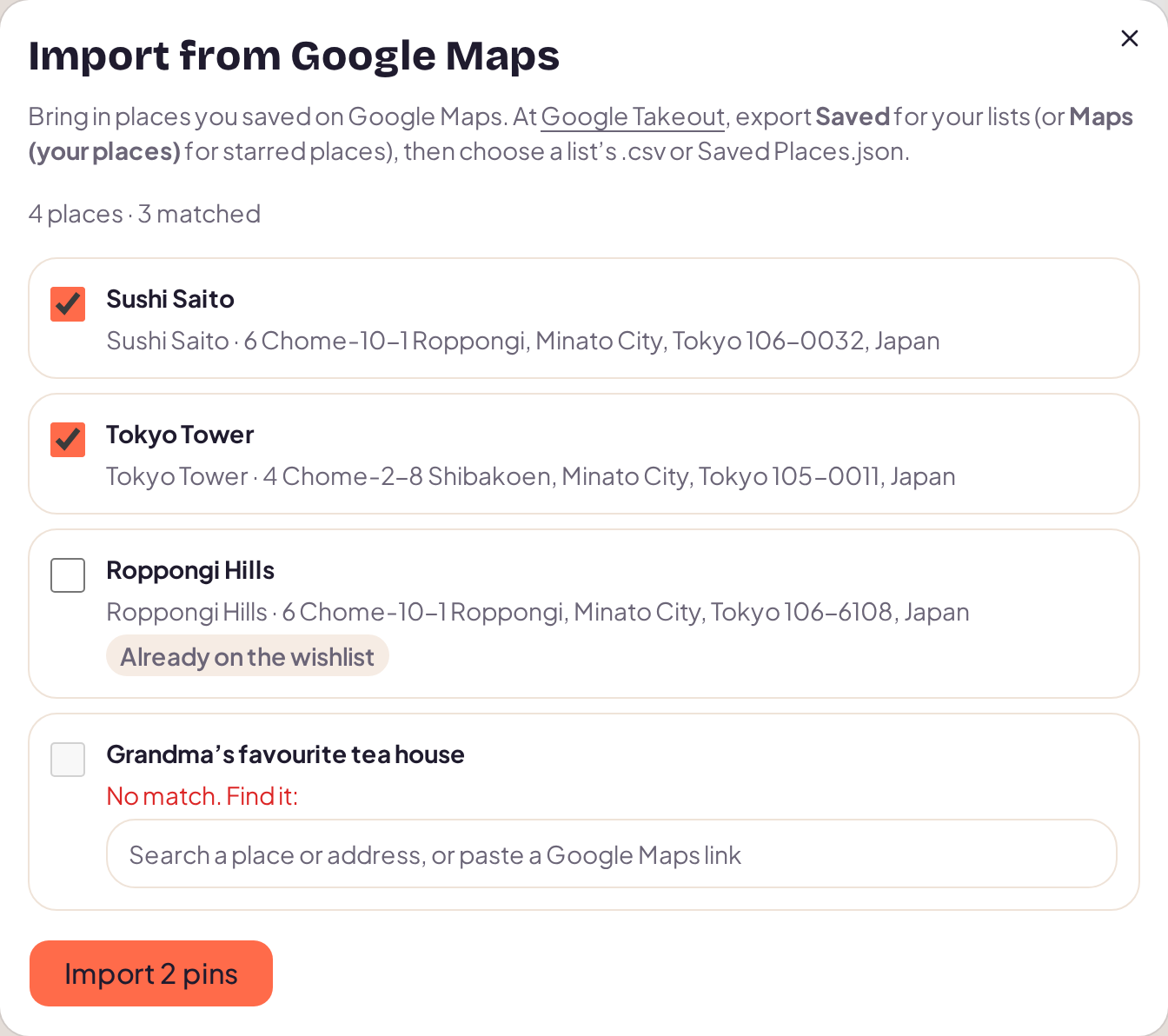 1 min read
Import your saved places from Google Maps
Bring the places you've saved or starred in Google Maps into your group trip's wishlist, matched, checked and pinned in one go.
Read the guide

Plan your next trip together
Free for any group size.