
Import your saved places from Google Maps
Bring the places you've saved or starred in Google Maps into your group trip's wishlist, matched, checked and pinned in one go.
1 min readUpdated 21 October 2026
If you've been saving places in Google Maps for months, you don't have to pin them again one by one. Export them from Google, then import them into the trip's wishlist.
Export from Google
- Go to Google Takeout and sign in.
- Choose Deselect all, then select:
- Saved for your saved lists ("Want to go", "Favourites" and the lists you've made), or
- Maps (your places) for places you've starred.
- Create the export and download it when Google emails you.
In the download, each saved list is a .csv file, and starred places are in Saved Places.json.
Import into the trip
- Open the trip's Wishlist and choose Import from Google Maps.
- Choose the list's
.csvfile, orSaved Places.json. - OohWeGo matches each saved place to a real place and shows you the list first. It says which are already on the wishlist, which are twice in this list, and which have no match.
- For a place with no match, search for it by hand right there, or leave it out.
- Choose Import.
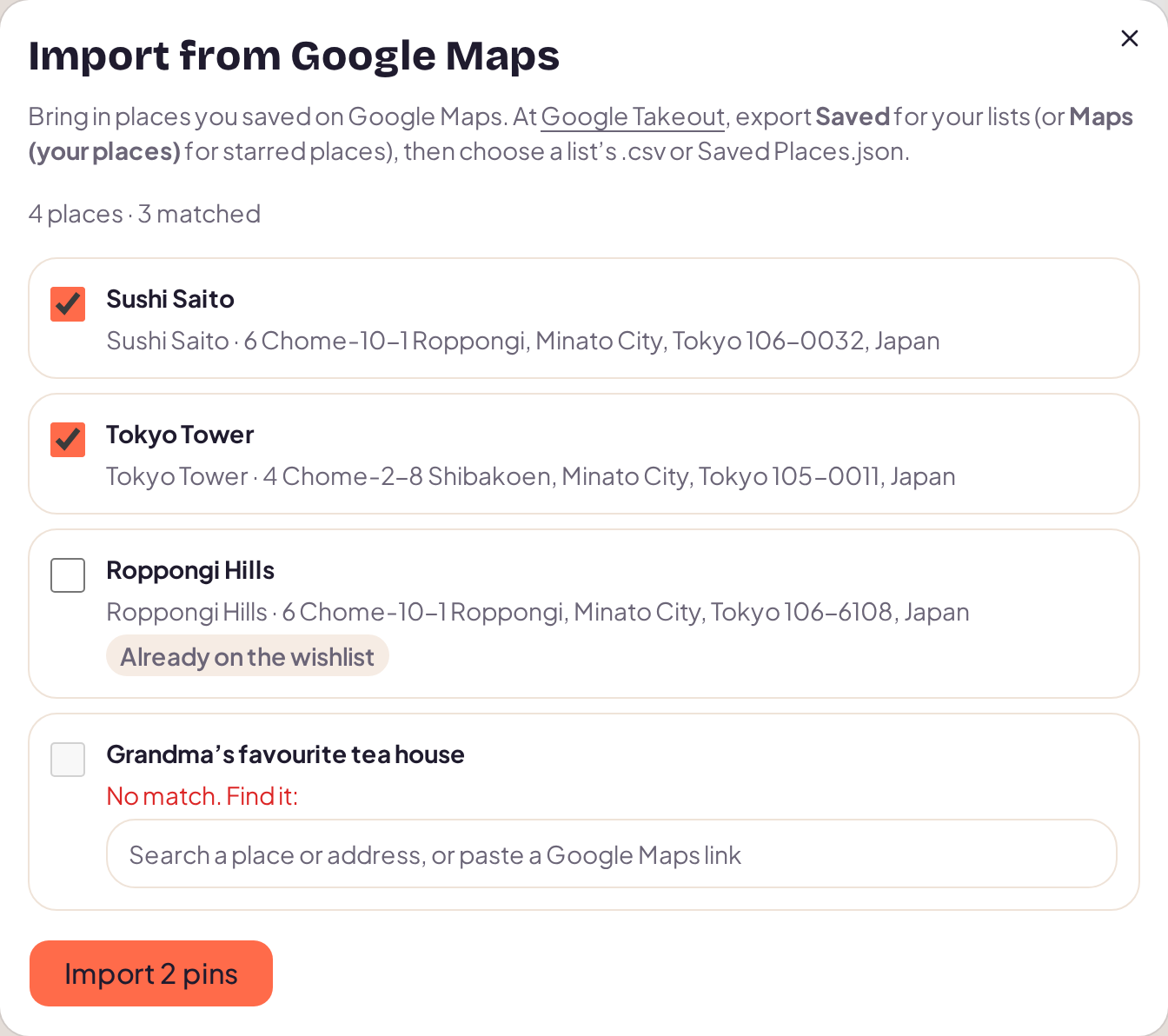
Each pin is tagged Google Maps import, in the category its place suggests, with the note you saved it with. They're ordinary pins from then on: vote on them, see where they fit and add them to the plan.
More guides
All guides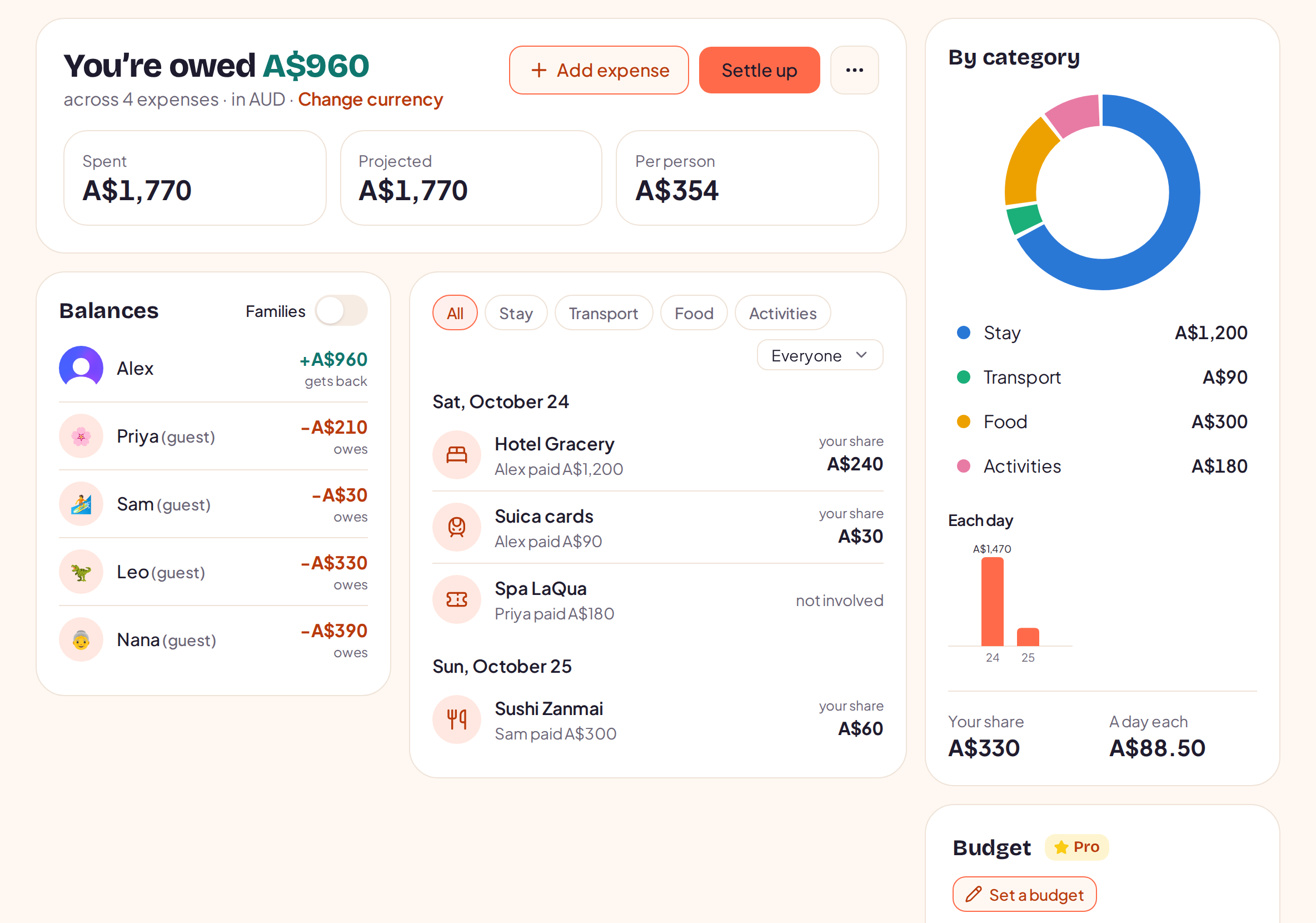 3 min read
Split trip costs and settle up
Log what anyone pays, split it equally or your own way, share activity costs with whoever's going, and settle up in the fewest payments.
Read the guide- 2 min read
Family reunion planning checklist
A family reunion checklist from 12 months out to the day itself. Print it, or use it in a trip and give each job to someone in the family.
Read the guide - 2 min read
Group trip planning checklist
A group trip checklist from 3 months out to settling up. Print it, or use it in a trip and give each job to someone in the group.
Read the guide

Plan your next trip together
Free for any group size.