
Split trip costs and settle up
Log what anyone pays, split it equally or your own way, share activity costs with whoever's going, and settle up in the fewest payments.
3 min readUpdated 24 October 2026
Someone books the hotel, someone pays for dinner, someone covers the taxi. The trip's Expenses tab keeps track of it all, so nobody needs a spreadsheet or a second app to work out who owes whom.
Add an expense
Open the trip's Expenses tab (on a phone, it's in the tab bar) and choose Add expense. You can also add one from the trip's Add menu. Then:
- Enter the Amount and a Title ("Ramen lunch"), and pick a category: stay, food, transport and so on.
- Choose who it was Paid by (you, to start with) and the Date.
- Choose who it's for. Everyone is ticked to start with; untick anyone who wasn't in on it.
- Choose Save.
The trip's first expense sets its currency, which a planner can change later with Change currency.
No signal?
Expenses happen on trains, up mountains and abroad without data. Add, change or delete an expense, or mark a payment as paid, without signal: it shows as Unsynced until you're back online, then saves by itself, even if you closed the app in between. If it can't be saved, for example because someone changed the same expense meanwhile, Expenses says why so you can try again.
Split it your way
Equally is the default. For anything else, pick how to split it:
- Exact: each person's own amount, like one long dinner where people ordered very differently.
- %: each person's percentage, adding up to 100%.
- Shares: each person's number of shares, so a couple can take 2 shares and a single traveller 1.
OohWeGo shares out any odd cents so the split always adds up exactly.
Costs for what you've planned
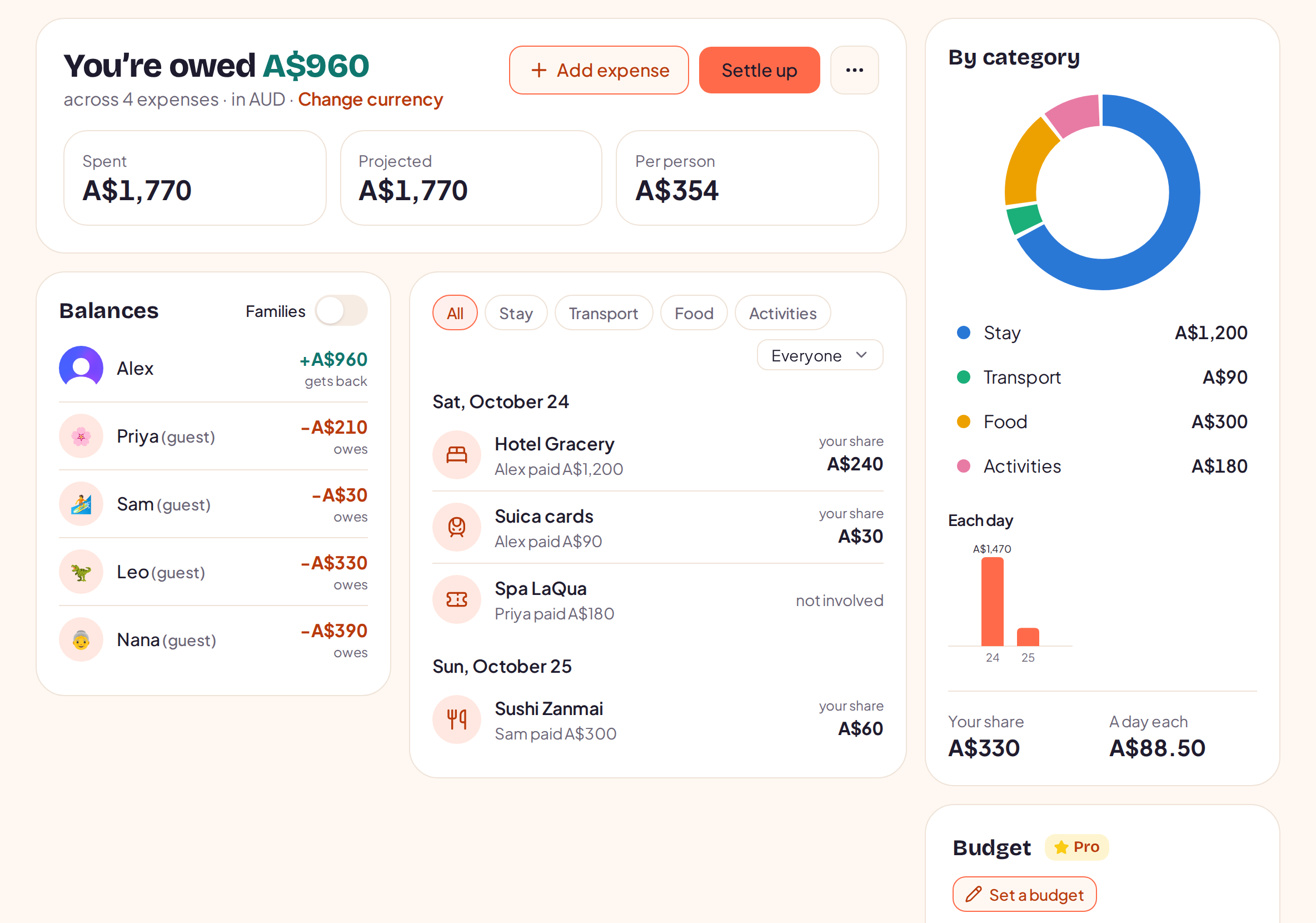
An activity can have a Cost: open it in the plan and enter what it will cost. Until someone pays, it's shared by whoever's going, so if you split into lanes and only three of you go karting, only those three share it. It shows in Expenses as planned, and counts towards what the trip is Projected to cost. Once it's paid, choose Mark as paid on it and it becomes an expense like any other.
Settle up
Balances shows what each person is owed or owes. When it's time to square up, choose Settle up. OohWeGo works out the fewest payments that settle everyone, for example "Nana pays Omar A$40". When someone pays, choose Mark as paid (for all of it or part), and Copy summary puts the list in your clipboard for the group chat.
Whoever's owed can choose Remind to nudge someone, once a day. After the trip, OohWeGo also reminds anyone who still owes, 2, 9 and 16 days after it ends.
Families
Travelling with kids or grandparents who don't have their own account? Add them as guests, and with Families turned on, a guest's share counts with whoever looks after them. Then one person settles up for the whole family. Turn Families off to keep everyone's balance separate.
With Pro
OohWeGo Pro adds:
- Other currencies: enter what you paid in yen or euros, converted to the trip's currency at that day's rate, or a rate you enter.
- Receipts: add a photo of the receipt to an expense.
- Budgets: set a budget for the trip, or for categories like food or stays, and see how it's going before the plan goes over.
- Export CSV: from the ⋯ menu beside Settle up, download every expense, payment and balance as a spreadsheet, for accountants or work trip claims.
Only the trip's owner pays, and everyone on the trip gets Pro features.
More guides
All guides- 2 min read
Family reunion planning checklist
A family reunion checklist from 12 months out to the day itself. Print it, or use it in a trip and give each job to someone in the family.
Read the guide - 2 min read
Group trip planning checklist
A group trip checklist from 3 months out to settling up. Print it, or use it in a trip and give each job to someone in the group.
Read the guide 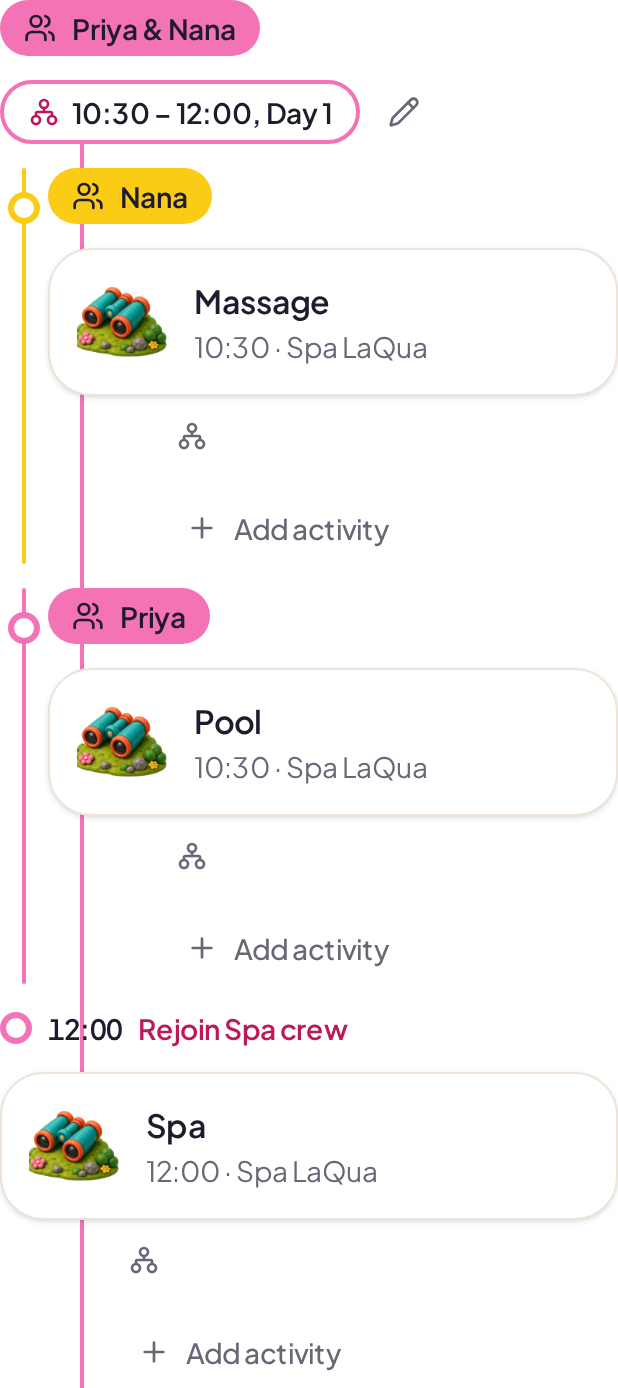 1 min read
Nested lanes (Pro)
Split a lane again, so part of a group that's already split up can go off on its own for a while, then rejoin its lane.
Read the guide

Plan your next trip together
Free for any group size.