
Add your trip to Google or Apple Calendar
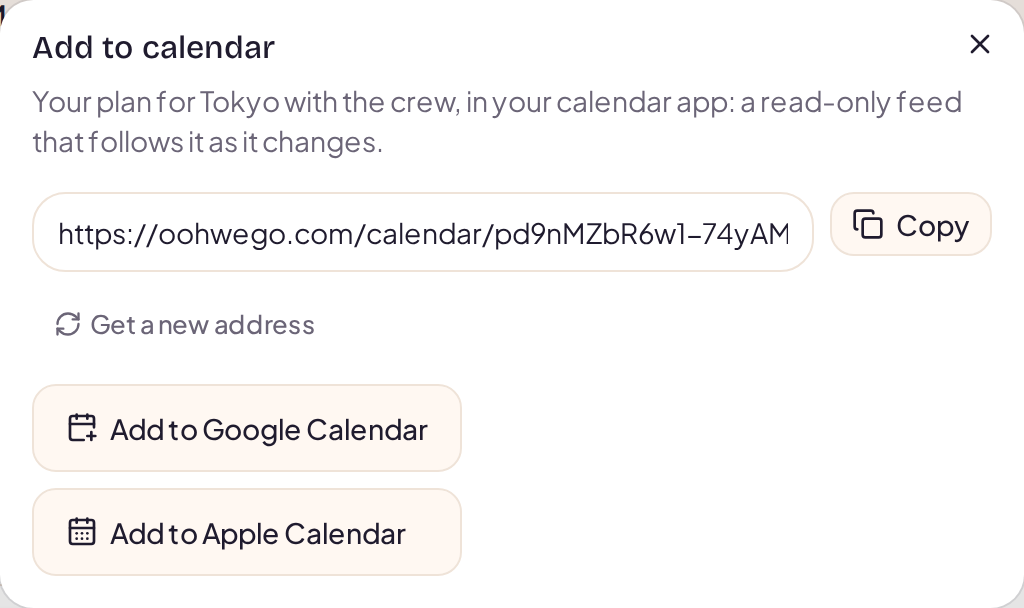
Subscribe to a calendar feed of your group trip, so your plan shows in Google Calendar or Apple Calendar and stays up to date as it changes.
1 min readUpdated 21 October 2026
Your trip plan can show in the calendar you already use, next to work and everything else. It's a calendar feed: a read-only calendar that follows your plan as it changes, so there's nothing to export again.
One trip
- On the trip, open its ⋯ menu (on a phone, More) and choose Add to calendar.
- Choose Add to Google Calendar or Add to Apple Calendar, or copy the feed's address into any calendar app that subscribes to calendars.
It's your plan for that trip: the shared plan and your own lanes.
All your trips
Settings has a calendar feed of all your trips together. Add it the same way, and every trip you're on shows up as you plan it.
Keep it private
Anyone with a feed's address can read it, so share it only with yourself. If it gets out, choose Get a new address in Settings: the old one stops working, and you add the new one to your calendar again.
Calendar apps check a feed for changes on their own schedule, so a change can take a while to show. Google Calendar can take several hours.
More guides
All guides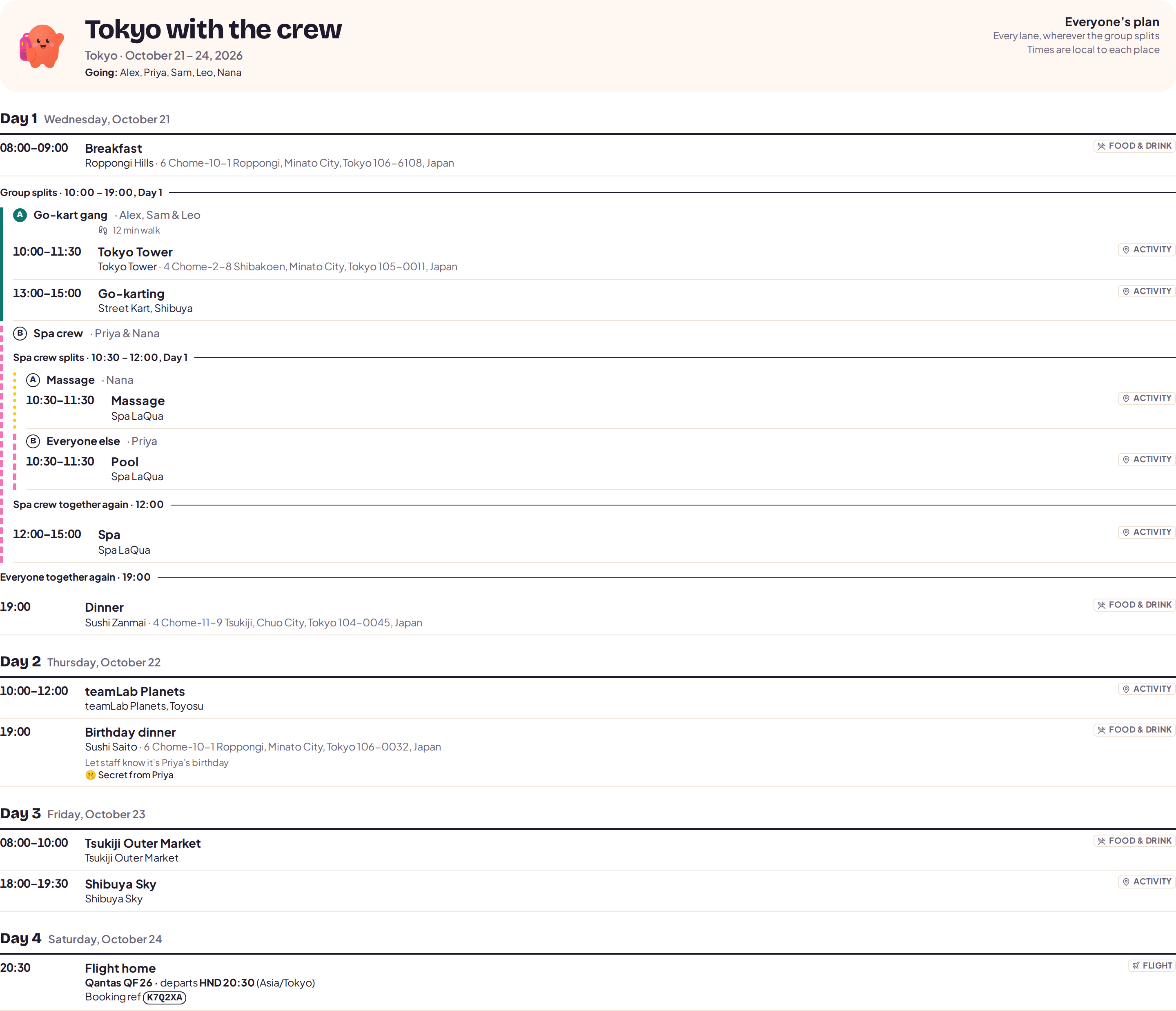 2 min read
Print or export your itinerary
Print your group trip itinerary or save it as a PDF, for you, one person or everyone, share a read-only link, or download all your data.
Read the guide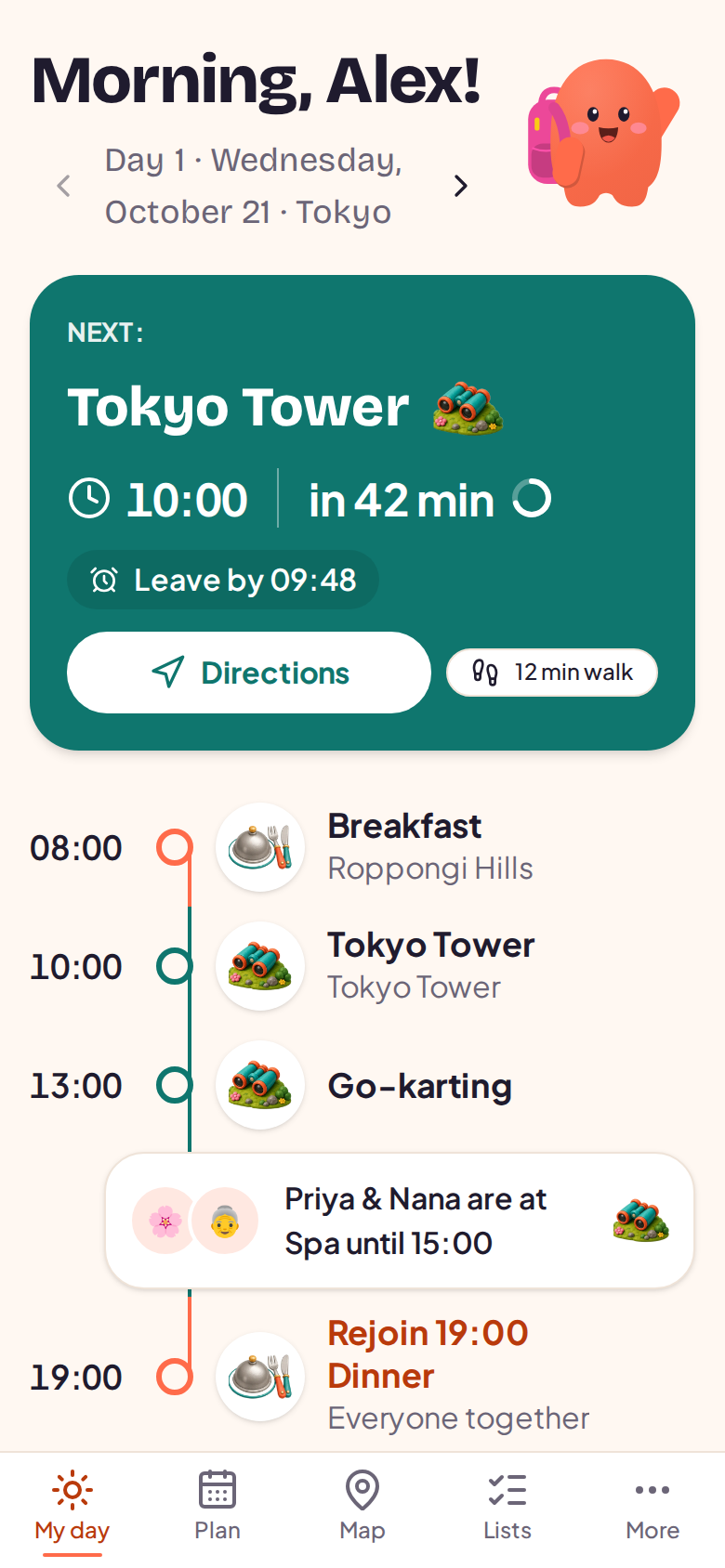 2 min read
My day on your phone
Install OohWeGo on your phone, see just your own plan for the day with when to leave, and get leave-by alerts and notifications on your trip.
Read the guide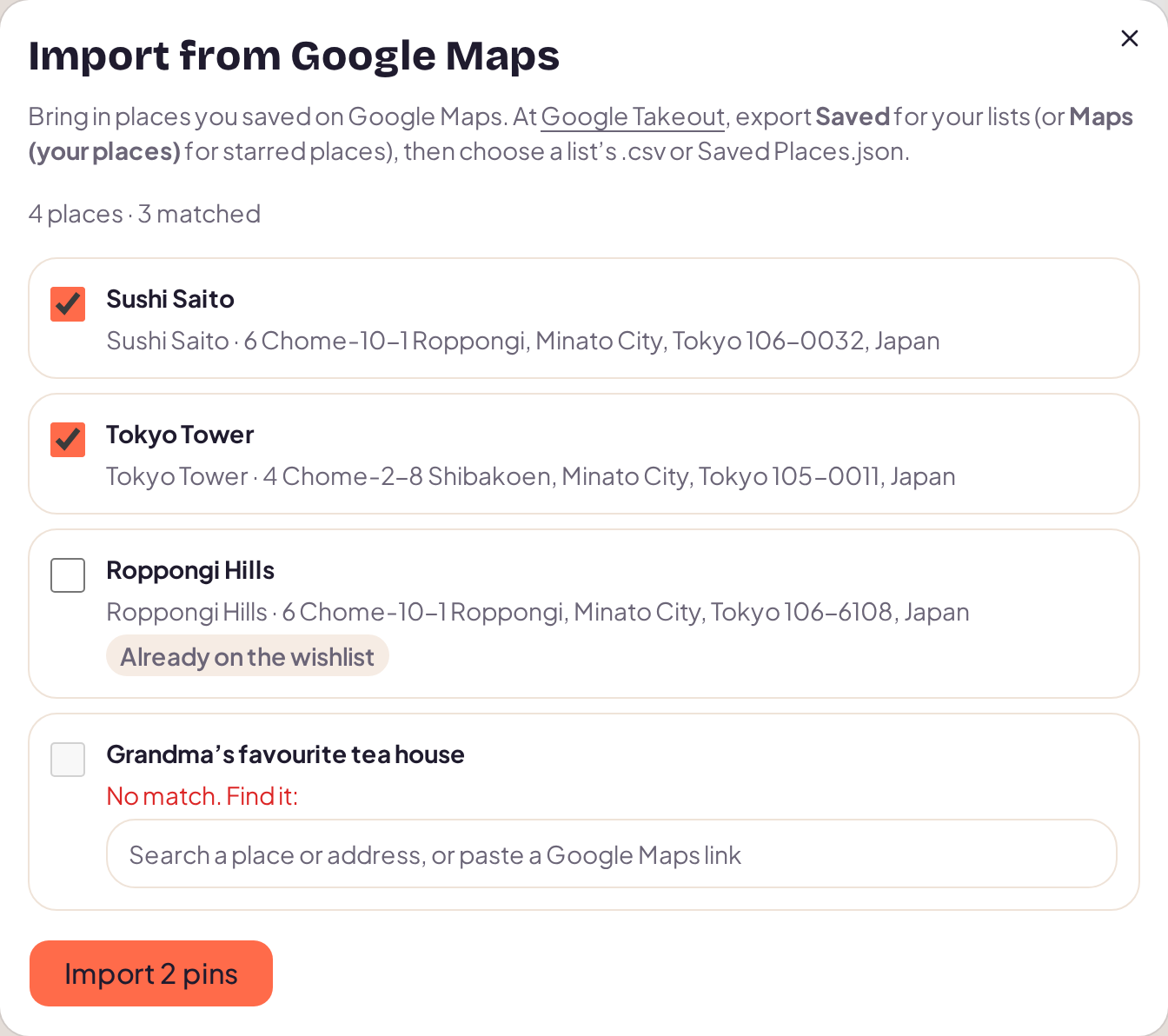 1 min read
Import your saved places from Google Maps
Bring the places you've saved or starred in Google Maps into your group trip's wishlist, matched, checked and pinned in one go.
Read the guide

Plan your next trip together
Free for any group size.